
Cobblemon Academy 2.0 is a modpack for Minecraft Java 1.21.1 built on Fabric and centered around Cobblemon. It lets players catch, train, and battle creatures while exploring a world enriched with new biomes and hundreds of structures.
On BoxToPlay, the modpack can be installed directly from the CurseForge catalog in the panel. Before starting, back up your world and make sure every player will use exactly the same modpack version.
In this guide, we will start with an existing Minecraft server in the customer area and follow the entire process: open the catalog, select Cobblemon Academy 2.0, launch the installation, and start the server.
Please note: the official public Cobblemon Academy server includes additional features that are not part of the modpack installed on a private server, including raids, dungeons, ranked battles, the Safari World, daycare, and the shop.
1. Open your server and change its version
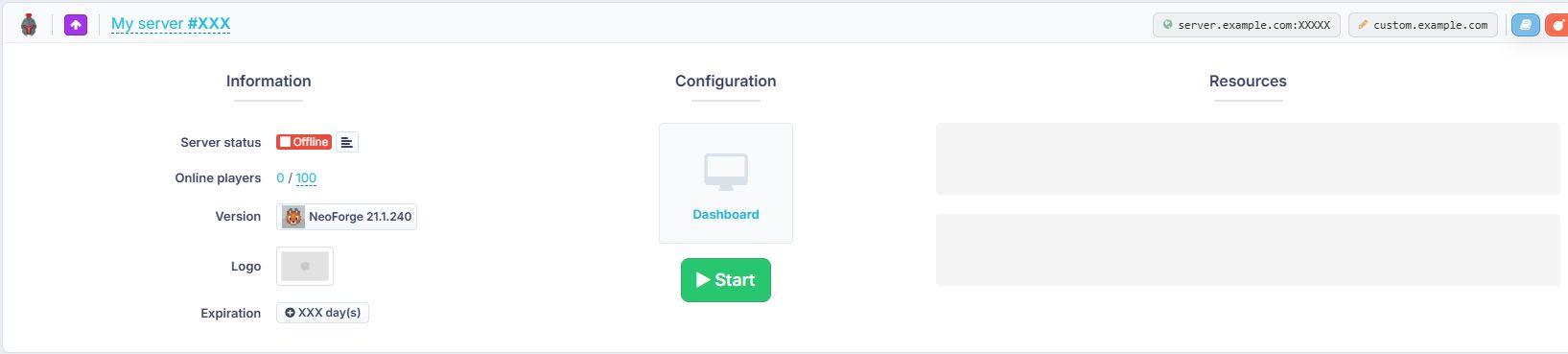
From your BoxToPlay customer area, open the Minecraft server on which you want to install Cobblemon Academy 2.0.
On the dashboard, find the Version row, then click the currently installed version. This opens the screen used to switch from a standard Minecraft version to a modpack available in our catalogs.
2. Search for Cobblemon Academy 2.0
The version selection screen groups several sources: Standard Versions, CurseForge, Modrinth, and Feed The Beast.
Open the CurseForge tab, then enter Cobblemon Academy 2.0 in the search field. The modpack appears directly in the list and can be selected without any manual download.

You can also open the Cobblemon Academy 2.0 page on BoxToPlay to review the pack and the available versions.
3. Choose the version and check the worlds option
Click the modpack to open the installation window. The panel then asks you to choose the exact version you want to install.
In our screenshots, the selected entry is Cobblemon Academy 2.0 2.4.0 for Fabric 1.21.1. As the catalog evolves with modpack updates, always choose the version you want from your panel. Then ask each player to open the Cobblemon Academy 2.0 file list on CurseForge, install exactly the same version on their computer, and launch the modpack before connecting.
The window also includes a Reset worlds option. Enable it only if you intentionally want to start with new worlds. If you want to keep the current worlds, leave it unchecked.
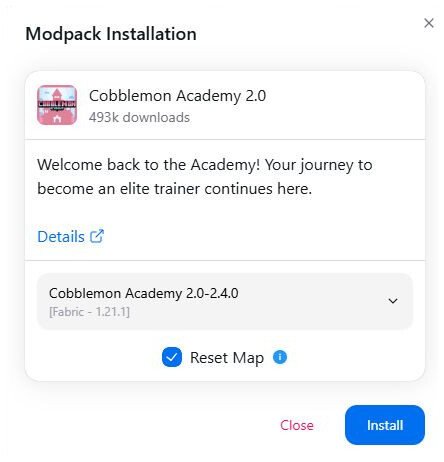
Once you have checked these two points, click Install to start the modpack installation.
4. Let BoxToPlay prepare the server
From this point, BoxToPlay handles the modpack installation and its server version. You do not need to rebuild a Fabric installation manually or upload an entire mods folder over FTP as with older modpack installation methods.
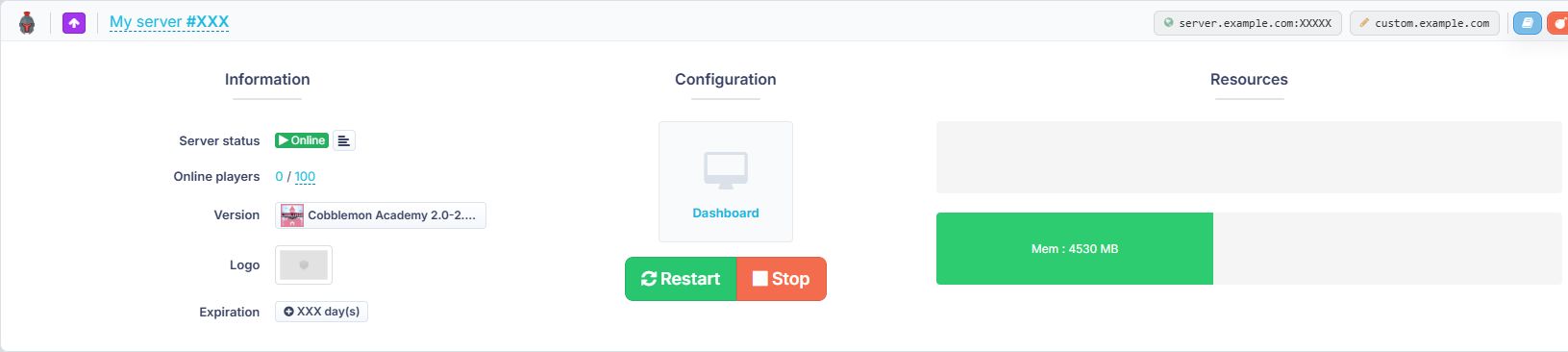
Wait until the installation has fully completed before starting the server. Once you are back on the dashboard, check that Cobblemon Academy 2.0 is displayed in the Version row.
Automatic installation also makes future changes easier: if you want to install another version later, find the Version row and click the installed version.
5. Start Cobblemon Academy 2.0
Once the installation is complete, click Start from the BoxToPlay dashboard. The first launch of a large modpack can take longer than a standard Minecraft server while its mods load and the world is prepared.
Let the server finish starting without clicking Start again. The panel automatically updates the server status when it is ready.
6. Check that the server is online
When the status changes to Online, Cobblemon Academy 2.0 is running. The panel then displays the Restart and Stop buttons together with the server resource usage.
Join the server and invite your friends
Copy the IP address shown at the top right of your server widget. If needed, you can customize it from the panel to choose an address that is easier to remember. Then share it with your friends: they only need to add it in Minecraft’s Multiplayer menu to join you.
Players must now launch the same Cobblemon Academy 2.0 version on their computers before joining the server. A client and server version mismatch can prevent the connection.
Ready to start your Cobblemon adventure?
Your Cobblemon Academy 2.0 server is now installed and running from a single BoxToPlay interface. You can connect, invite your players, and start your adventure.
If you do not have a server yet, you can choose a BoxToPlay Minecraft server plan, then install Cobblemon Academy 2.0 directly from the CurseForge catalog in the panel.
More Articles
Minecraft Bedrock: Official BDS, Add-ons, and NukkitX Plugins
August 24, 2026Minecraft Commands: Complete Java and Bedrock Guide
August 15, 2026Minecraft 26.3: all the features announced so far
July 31, 2026BoxToPlay Partner Program
July 22, 2026